Search This Blog

Monday, December 06, 2010

Simple MVC 2 App on Windows Azure

Hi Friends,

Want to upload an MVC 2 Application on Windows Azure.

Re-Introducing the Windows Azure AppFabric Access Control Service

If you’re looking for a service that makes it easier to authenticate and authorize users within your Web sites and services, you should take another look at the Windows Azure AppFabric Access Control service (ACS for short), as some significant updates are in the works (at the time of this writing).

Opening up your application to be accessed by users belonging to different organizations—while maintaining high security standards—has always been a challenge. That problem has traditionally been associated with business and enterprise scenarios, where users typically live in directories. The rise of the social Web as an important arena for online activities makes it increasingly attractive to make your application accessible to users from the likes of Windows Live ID, Facebook, Yahoo and Google.

With the emergence of open standards, the situation is improving; however, as of today, implementing these standards directly in your applications while juggling the authentication protocols used by all those different entities is a big challenge. Perhaps the worst thing about implementing these things yourself is that you’re never done: Protocols evolve, new standards emerge and you’re often forced to go back and upgrade complicated, cryptography-ridden authentication code.

The ACS greatly simplifies these challenges. In a nutshell, the ACS can act as an intermediary between your application and the user repositories (identity providers, or IP) that store the accounts you want to work with. The ACS will take care of the low-level details of engaging each IP with its appropriate protocol, protecting your application code from having to take into account the details of every transaction type. The ACS supports numerous protocols such as OpenID, OAuth WRAP, OAuth 2.0, WS-Trust and WS-Federation. This allows you to take advantage of many IPs.

Outsourcing authentication (and some of the authorization) from your solution to the ACS is easy. All you have to do is leverage Windows Identity Foundation (WIF)—the extension to the Microsoft .NET Framework that enhances applications with advanced identity and access capabilities—and walk through a short Visual Studio wizard. You can usually do this without having to see a single line of code!

Does this sound Greek to you? Don’t worry, you’re not alone; as it often happens with identity and security, it’s harder to explain something than actually do it. Let’s pick one common usage of the ACS, outsourcing authentication of your Web site to multiple Web IPs, and walk through the steps it entails.

Outsourcing Authentication of a Web Site to the ACS

Let’s start by taking a vanilla Web site and enabling users to log in using a Google account.

Before we get started, let’s make sure we have the prerequisites covered. Here’s what we need:
  • Visual Studio 2010
  • Windows Identity Foundation Runtime
  • Windows Identity Foundation SDK and one of the following: Windows 7, Windows Server 2008, Windows Server 2008 R2 or Windows Vista SP1
Although it’s not a hard requirement, having IIS on the machine will help; if you don’t have IIS installed, you’ll have to adjust the steps of the walkthrough here and there.

While Visual Studio requires no introduction, it will probably help to expand a bit on WIF (pronounced “dub-IF”), and why it’s a prerequisite. (For a thorough explanation of WIF, see “Programming Windows Identity Foundation” [Microsoft Press, 2010]).

WIF is an extension to the .NET Framework that provides you with a new model for dealing with authentication and user identity, a model that decouples your application from the details of how authentication takes place. Traditional authentication systems (such as the ASP.NET Membership provider APIs) force you to cope with the details of how authentication takes place. This requires you to use low-level APIs to deal with low-level constructs such as passwords, certificates and the like. WIF changes all this by offering a handy abstraction that allows you to specify an external entity to handle user authentication. 

With Forms-based authentication, you specify a given page—typically login.aspx—where requests are redirected whenever the caller is not yet authenticated. With WIF, you can enlist an external entity—an IP—to be invoked whenever a user needs authentication. The ways in which the IP is chosen at design time and engaged at run time follow well-known protocols. WIF takes care of discovering which protocols should be used and enforcing communication policies accordingly. Once again, this is much easier to show than to explain.

Create the Initial Solution

Open up Visual Studio. Create a new Web site by selecting File | New | Web Site. Let’s create a new ASP.NET Web site—but first, be sure that you’ve selected the Web location as “HTTP” and configured the URL so that it’s running in IIS (see Figure 1).This will ensure a smooth run when using the WIF tools. If you have HTTPS available on your Web server, it’s a good idea to use it; although not strictly necessary for this walkthrough, it’s highly recommended on production systems and will save you some warnings from WIF.

image: Selecting an ASP.NET Web Site with HTTP as the Location
Figure 1 Selecting an ASP.NET Web Site with HTTP as the Location

When you hit F5, you’ll see that you have a basic ASP.NET Web site, and by clicking the “Log In” link you’ll get prompted to enter a username and password. This is what we’re going to change—instead of using a username and password and handling authentication directly in the Web site, we’re going to use WIF to outsource authentication to the ACS. The ACS will in turn allow us to open up access to external IPs.

Configure an ACS Project

To begin, we need to create a project in the Windows Azure AppFabric LABS portal. The LABS portal is an environment set up specifically for allowing the community to access early bits. There’s no cost associated with AppFabric LABS, but there are also no service-level agreements or guarantees.
Open your browser and go to portal.appfabriclabs.com. You’ll be prompted to log in with a Windows Live ID. Once logged in, you’ll need to create a new project—click the “create a project” link. You’ll have to choose a project name—select something appropriate and click OK. Once complete, you’ll see an active project name (“acsdemoproject” in our example)—click it (see Figure 2).


image: Creating a Project in the Windows Azure AppFabric LABS Portal
Figure 2 Creating a Project in the Windows Azure AppFabric LABS Portal


Before you can outsource authentication to the ACS, you need to define a service namespace. Think of the service namespace as providing you with your own slice of the AppFabric LABS environment and—for the ACS—the unique component for all the URIs of the resources you’ll use when interacting with the ACS from your application. Everything contained within the service namespace is yours to control. Click “Add Service Namespace,” specify a name, choose a zone—in LABS you can only select “United States (South/Central)”—and click Create. Note that the URIs used by AppFabric are available on the public Internet and are meant to uniquely identify services; hence you must choose a namespace that hasn’t been picked by anybody else.
It’ll take a few moments, but after your service namespace activates, you’ll be able to click the “Access Control” link to start configuring the ACS for your Web site.

Now you’ve made it to the management portal, where you can configure the ACS for your Web sites (see Figure 3).


image: The Windows Azure AppFabric Access Control Service Management Portal
Figure 3 The Windows Azure AppFabric Access Control Service Management Portal


Click the “Manage” button to get started. The management portal provides some guided steps to walk you through the process of getting started, and that’s just what we’re going to do.

Choosing the Identity Providers You Want

Click the “Identity Providers” link. Here we want to configure the various social IPs we want to leverage from within your application. Windows Live ID is present in the list by default; let’s add support for Google accounts.

Click the “Add Identity Provider” link, which will show a list of providers. Click the “Add” button next to Google. You can specify a custom image URL for the IP, but go ahead and just click “Save.” Just like that, we’ve added Google as a recognized source of user identities.

Getting the ACS to Recognize Your Web Site

Now that our IPs have been configured, we need to provide information to the ACS about our Web site. In identity jargon, we often refer to applications as “Relying Parties,” an expression that refers to the fact that the application relies on one or more IPs to take care of authentication on their behalf. The ACS UI is consistent with this terminology.

Click the “Relying Party Applications” URL, and then “Add Relying Party Application.” Let’s specify the following information:
  • Name: My Website
  • Realm: https://localhost/Website/
  • Return URL: https://localhost/Website/
  • Token format: SAML 2.0
  • Token signing: Use service namespace certificate (typical)
The Token Format field deserves at least a short explanation (we’ll spend more time on the topic later in the article). A token is an artifact—typically an XML fragment or something in another serialization format—used by IPs to indicate that a successful authentication operation took place. Once a user authenticates, using whatever system the IP chooses, the user’s browser will be redirected to the ACS carrying a token that certifies the user has been recognized. The token format and protocol used will be determined according to the IP. The ACS will examine the token and, if it finds it satisfactory (more about this later), will emit a new token of its own and send it back to your application. The settings you change in this step determine which token format you wish the ACS to use for communicating back to your application. The ACS is capable of emitting three types of tokens—SAML2.0, SAML1.1 and SWT—representing different trade-offs between expressive power, security, applicability for certain client types and so on. Just pick SAML2.0 here; the details aren’t imperative at this point.

It’s important that the realm corresponds to the URL for the Web site we created earlier. Once the authentication with the IP of choice takes place, the ACS will redirect the user back to your Web site using the URL you specify here. Note that, by default, “Create New Rule Group” is selected—we’ll leverage this in the next step. Click “Save” once you’re done and return to the management portal.

Adding Rules

Rules are interesting constructs that give you fine-grained control over user identity information. The scenario we’re enabling right now, however, doesn’t require the explicit use of rules in order to enable sign-on from multiple IPs. Therefore, we’ll postpone all explanations about what rules are to a later section in the article, where they’ll actually come in handy; here we’ll just go with the default settings.

Click the “Rule Groups” link. You should see the rule group created when we added the relying party application (“Default Rule Group for My Website”). Select this rule group, click the “Generate Rules” link, confirm that both Google and Windows Live ID are selected, and then click the “Generate” button—that’s all you need to do in regard to rules in this scenario.

Collecting the WS-Federation Metadata Address

At this point, we’re finished configuring the ACS. However, before we jump back to Visual Studio, let’s grab some information from the Application Integration page. Click the “Application Integration” link and copy the “WS-Federation Metadata” URL—we’re going to use this with WIF to set up our Web site to leverage.

Without going into too much detail, the WS-Federation Metadata document is a machine-readable description of how the ACS handles authentication. Your application will need it in order to be configured to outsource authentication to the ACS.

Configuring the Web Site to Use the ACS

Return to Visual Studio and your Web site. We now want to 
leverage WIF to outsource authentication to the ACS, which will in turn enable Google accounts to access our application. In the Solution Explorer, right-click the Web site project and select “Add STS Reference.” This will launch the Federation Utility wizard, which will configure the Web site to use WIF as the authentication mechanism and the ACS as the authenticating authority. STS stands for “Security Token Service,” which indicates a special kind of Web service or Web page that offers an entry point for requesting tokens; usually every IP or token issuer uses one.

 You can just click “next” most of the time; the steps in which you’ll have to enter information are precious few. Advance to the “Security Token Service” step, and specify “Use an existing STS.” Paste the federation metadata URL you copied from the ACS portal (see Figure 4).


image: Starting the Federation Utility Wizard in Visual Studio
Figure 4 Starting the Federation Utility Wizard in Visual Studio


From there, leave the defaults, click through to the end and select Finish. The wizard will add all the required WIF assemblies, add some files to your Web site and (most importantly) update your web.config with the information required to engage with the ACS at authentication time.

Testing the Authentication Flow

It’s finally time to give your newly secured Web site a spin! Hit F5. You’ll immediately be redirected to the Home Realm Discovery page, which offers the user the chance to pick among the IPs we configured earlier in the ACS management portal (see Figure 5).


image: The Home Realm Discovery Page
Figure 5 The Home Realm Discovery Page


After you select Google and enter your Google account credentials, you’ll see an approval page that requires you to allow the ACS project access—this is important to understand, as it’s not your Web site that’s requesting permission, but instead the ACS (see Figure 6).


image: The Windows Azure AppFabric Access Control Service Asking for Permission to Get Information from Google
Figure 6 The Windows Azure AppFabric Access Control Service Asking for Permission to Get Information from Google


Once you’ve allowed the ACS the access it requires, you’ll get redirected back to the Web site (see Figure 7). That’s it—you’re logged in!

image: Success! Logging in to the Web Site
Figure 7 Success! Logging in to the Web Site

If you want to verify that the same experience would work with Windows Live ID, the other IP configured in your namespace, all you need to do is close the browser, hit F5 again and at the Home Realm Discovery page pick Windows Live ID instead of Google.

If you have any experience in enabling authentication protocols on Web sites, you know that, traditionally, adding an IP means studying its protocols and API, writing fairly challenging code and testing, testing, testing before getting it right. And every additional IP requires the same, plus the extra complication of understanding from the request which protocol is being used.

Here, we didn’t need to do any of that; in fact, you may have noticed that we didn’t write a single line of code. If we want to add extra identity providers, all we’ll need to do is go through a couple of screens on the ACS management portal, with no impact whatsoever on the application itself. If the IPs evolve their protocols, the ACS will change its code to accommodate the new conditions, and our application won’t even know anything changed at all.

The ACS: Structure and Features

Now that you’ve had a chance to experience firsthand the power of the ACS, you’re ready for a brief overview of what the ACS really is and what makes it tick. This will require a bit of theory, but you’ll discover that you already learned most of what you need to know while walking through the scenario described earlier.

The ACS operates according to the principles of claims-based identity. The main idea behind claims-based identity is that every entity in an identity transaction plays one or more canonical roles, taken from a short list of four: subject, identity provider (IP), relying party (RP) and federation provider (FP). In the walkthrough, you’ve seen all those in action. The interaction among those entities boils down to requesting, obtaining and forwarding security tokens, as shown in Figure 8.

image: Requesting, Obtaining and Forwarding Security Tokens
Figure 8 Requesting, Obtaining and Forwarding Security Tokens

The subject is the role played by the user—that is, the entity that needs to be authenticated. The IP is the entity that stores the account for the subject: username, credentials, attributes and so on. The IP uses one or more STSes for exposing its authentication capabilities and for issuing tokens. The RP is the application that the subject wants to use. Those three roles are enough for describing the most basic case: the subject obtains a token from an IP that the RP trusts, uses that token with the RP and the authentication is done.

One thing we didn’t cover during the walkthrough is that the tokens aren’t just representing the successful outcome of the authentication operation, but they’re also used to transport attributes describing the user: name, e-mail address roles and anything else that the RP needs to know and that the IP makes available. If you recall the properties of signed security tokens, you’ll see how those attributes can’t be tampered with and are cryptographically guaranteed to come from a specific IP. That means that one RP can choose to consider valid the attributes it receives according to how much it trusts the IP that originated them. Think of real-life situations in which you need to prove something—for example, that you actually live at a certain address. Companies often ask you to provide a utility bill, mainly because they trust the utility company more than they trust you. The information is the same (the address), but the IP that produced it makes all the difference.

When an attribute is issued as part of a security token, we call that attribute a claim. This concept is so important that it gives the name to the entire approach, and practically everything the ACS does revolves around claims. We just need to get another concept out of the way and then we’ll go in the details.

Although you could use the subject-RP-IP roles for modeling every system, in practice it’s not very handy. If one RP trusts multiple IPs, as was the case in our scenario, the model would require the RP to maintain multiple relationships, handle different protocols and so on. This is where the fourth role, the FP, comes into play. An FP is an intermediary between one or more RPs and one or more IPs, as shown in Figure 9.

image: The Federation Provider as an Intermediary
Figure 9 The Federation Provider as an Intermediary

The FP trusts multiple IPs, behaving like an application and expecting tokens from the IPs. In turn, the RP trusts the FP; to that purpose the FP exposes its own STS, which issues tokens for the RP. The FP takes care of the details of engaging with the various IPs, while always presenting to the RP the same façade, so IPs can be on-boarded and de-provisioned without affecting the RP. The FP can also transform the claims coming from different IPs to make them more useful for the RP. It can normalize different incoming claim types, add extra claims such as roles or permissions, and so on.
As you may have guessed by now, the ACS plays the role of the FP, as illustrated in Figure 10.

image: The Windows Azure AppFabric Access Control Service Playing the Role of Federation Provider
Figure 10 The Windows Azure AppFabric Access Control Service Playing the Role of Federation Provider

When you create a service namespace, you get your very own full-featured FP in the cloud. Out of the box, that FP includes four different STS endpoints, all offering different protocols that are suitable for different application types: WS-Federation for signing in to Web sites; WS-Trust for invoking SOAP Web services; OAuth WRAP and OAuth 2 for REST Web services; and Web APIs in general. Those are the endpoints you use to configure your application to outsource authentication.

The ACS is already pre-configured to trust various Web IPs, as we’ve seen, and it facilitates the experience of choosing among them by providing pages or embeddable code for them. In addition to that, the ACS is able to establish trust with commercial IPs such as Active Directory Federation Services 2.0 (AD FS 2.0), which expose STS endpoints themselves. In practice, the ACS exposes the counterpart of the “Add STS reference” functionality you’ve seen when configuring your Web site to trust the ACS. Using AD FS 2.0 as an IP is extremely interesting, as it allows you to reuse user accounts whenever you want, including those in Windows Azure-hosted applications that would traditionally be valid only on-premises. Another interesting feature of business IPs is that they usually provide much richer claims sets that can be used for adding sophisticated identity-driven logic in the token processing.

The ACS allows you to describe your claims transformation login in the form of rules, a simple but powerful mechanism. For example, you can assign a role to a user as simply as entering something along the lines of “if the incoming name identifier claim has value X, please add an output claim of type role and value Y.”

All of the functionality discussed here can be accessed through the management portal you used in the walkthrough; alternatively, there’s an OData-based management service that gives you full control on the ACS settings while integrating with your existing processes.

As trite as it may sound, we did barely scratch the surface of what the ACS can do for you. We invite you to check out the hands-on lab in the identity developer training kit and the Windows Azure platform training kit for exploring more scenarios in greater detail. If you want to simplify access management for your Web site, Web service or Web API, the ACS can help!

Pushing Content from SharePoint to Windows Azure Storage

Hi Friends,

Want to push Sharepoint Content onto Windows Azure Storage?
Check the link below for more details

Sunday, December 05, 2010

New Full IIS Capabilities: Differences from Hosted Web Core (HWC)

The new Windows Azure SDK 1.3 supports Full IIS, allowing your web roles to access the full range of web server features available in an on-premise IIS installation. However if you choose to deploy your applications to Full IIS, there are a few subtle differences in behaviour from the Hosted Web Core model which you will need to understand. 


What is Full IIS?


Windows Azure's Web Role has always allowed you to deploy web sites and services. However many people may not have realised that the Web Role did not actually run the full Internet Information Services (IIS). Instead, it used a component called Hosted Web Core (HWC), which as its name suggests is the core engine for serving up web pages that can be hosted in a different process. For most simple scenarios it doesn't really matter if you're running in HWC or IIS. However there are a number of useful capabilities that only exist in IIS, including support for multiple sites or virtual applications and activation of WCF services over non-HTTP transports through Windows Activation Services.


One of the many announcements we made at PDC 2010 is that Windows Azure Web Roles will support Full IIS. This functionality is now publicly available and included in Windows Azure SDK v1.3. To tell the Windows Azure SDK that you want to run under Full IIS rather than HWC, all you need to do is add a valid section to your ServiceDefinition.csdef file. Visual Studio creates this section by default when you create a new Cloud Service Project, so you don't even need to think about it!
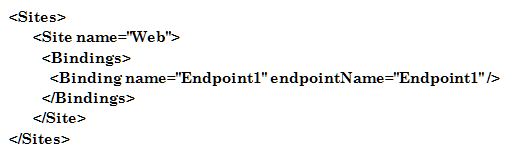
A simple section defining a single website looks like this: 

  
You can easily customise this section to define multiple web sites, virtual applications or virtual directories, as shown in this example:


After working with early adopter customers with Full IIS for the last couple of months, I've found that it's now easier than ever to port existing web applications to Windows Azure. However I've also found a few areas where you'll need to do things a bit differently to you did with HWC due to the different hosting model.


New Hosting Model


There is a significant difference in how your code is hosted in Windows Azure depending on whether you use HWC or Full IIS. Under HWC, both the RoleEntryPoint methods (e.g. the OnStart method of your WebRole class which derives from RoleEntryPoint) and the web site itself run under the WaWebHost.exe process. However with full IIS, the RoleEntryPoint runs under WaIISHost.exe, while the web site runs under a normal IIS w3wp.exe process. This can be somewhat unexpected, as all of your code belongs to the same Visual Studio project and compiles into the same DLL. The following diagram shows how a web project compiled into a binary called WebRole1.dll is hosted in Windows Azure under HWC and IIS.


This difference can have some unexpected implications, as described in the following sections.

Reading config files from RoleEntryPoint and your web site

Even though the preferred way of storing configuration in Windows Azure applications is in the ServiceConfiguration.cscfg file, there are still many cases when you may want to use a normal .NET config file - especially when configuring .NET system components or reusable frameworks. In particular whenever you use Windows Azure diagnostics you need to configure the DiagnosticMonitorTraceListener in a .NET config file.

When you create your web role project, Visual Studio creates a web.config file for your .NET configuration. While your web application can access this information, your RoleEntryPoint code cannot-because it's not running as a part of your web site. As mentioned earlier, it runs under a process called WaIISHost.exe, so it expects its configuration to be in a file called WaIISHost.exe.config.  Therefore, if you create a file with this name in the your web project and set the "Copy to Output Directory" property to "Copy Always" you'll find that the RoleEntryPoint can read this happily. This is one of the only cases I can think of where you'll have two .NET configuration files in the same project!

Accessing Static Members from RoleEntryPoint and your web site

Another implication of this change is that any AppDomain-scoped data such as static variables will no longer be shared between your RoleEntryPoint and your web application. This could impact your application in a number of ways, but there is one scenario which is likely to come up a lot if you're migrating existing Windows Azure applications to use Full IIS. If you've used the CloudStorageAccount class before you've probably used code like this to initialise an instance from a stored connection string:


var storageAccount = CloudStorageAccount.FromConfigurationSetting("ConnectionString");

Before this code will work, you need to tell the CloudStorageAccount where it should get its configuration from. Rather than just defaulting to a specific configuration file, the CloudStorageAccount requires you set a delegate that can get the configuration from anywhere you want. So to get the connection string from ServiceConfiguration.cscfg you could use this code:

Thursday, December 02, 2010

App Fabric ACS -- Explained clearly.

AppFab:ACS

I’m going to assume you understand a little of the basics of federation for this part of the post. If you don’t -  read my federation primer to get yourself up to speed.

When you place an instance in Azure and you “protect” it using AppFab:ACS, you are typically crossing an organisational boundary. There are reasons you might not be doing that – which we’ll come to in a moment. For now, let’s assume you are say, a SaaS service provider. You have written the most fantastic expense submission application and everybody wants to use it.

You don’t want to go to the trouble of having to manage the users. You want to provide the service. So you set up federation trusts with those companies that want to use your service. They create the users, set their passwords, determine if the accounts are enabled or disabled. They delete the accounts when they are no longer relevant, they set password complexity policy, expiration policy and so on. If a user forgets their password they go to their own company’s helpdesk to get it reset, not yours.

They do this by configuring a service that sits on top of their Active Directory called Active Directory Federation Services 2.0 (ADFS 2.0). You in your turn configure the Windows Azure Application Fabric’s Access Control Service (AppFab:ACS) with details of your application and vice versa, you configure your application with details of your partition of AppFab:ACS.

You then set up a federation trust with any company that wants to access your application. This involves the exchange of URLs and certificates between their ADFS2 server and your partition of AppFab:ACS. There are metadata endpoints to simplify this process. Of course, you could set this up between your own company’s ADFS2 server and your own instance of AppFab:ACS, as shown below:

image

Now, when a user from your application wants to use the application you have deployed to the cloud, it will be as if the application lives inside your AD. It doesn’t, but the experience they would have is like this:
  1. It’s 09:00, Fred comes in to the office, hits CTRL-ALT-DEL and enters his AD credentials to log in to the domain.
  2. It’s 10:00 and he now needs to enter his expenses. He clicks a desktop icon which is a URL shortcut to the application in the cloud.
  3. The application opens, says “Welcome back Fred” and he uses the application to submit his expenses.
He was never prompted for credentials because of the way the dance works with federation/ADFS2 and Active Directory. The dance is explained in my federation primer, but what essentially happens is this:
  1. Fred clicks the icon and his browser takes him to the application
  2. The application redirects his browser to your partition of AppFab:ACS
  3. AppFab:ACS sees that Fred has come from its federation partner and redirects Fred's browser to his own ADFS2 server.
  4. On trying to reach the ADFS2 server, an authentication takes place. It’s all built-in to Windows and done through Kerberos. It’s entirely invisible to Fred as a user, the same as when he goes to a domain-joined IIS machine using Windows authentication. The authentication just works under the covers.
  5. On successful authentication, the ADFS2 server pushes Fred back to AppFab:ACS and appends a SAML token which it encrypts and digitally signs. If you need to understand encryption and signatures, read my crypto primer.
  6. AppFab:ACS receives the token, decrypts it and checks the digital signature. It is now assured the token has been issued by its federation partner.
  7. AppFab:ACS creates a new token and copies the claims in the original token in to the new token. At this point it might also do something called claims transformation. If you need to understand this – again, read the federation primer.
  8. It digitally signs and encrypts the token (optional) and redirects Fred’s browser back to the application it started appending the new SAML token.
  9. The application decrypts the token and checks the signature. It verifies the token was definitely issued by your partition of AppFab:ACS and grants access to Fred. Fred never had to enter a password, other than the password he entered when he logged on to AD at 09:00 when he started work. 
Taken from Link : http://blogs.msdn.com/b/plankytronixx/archive/2010/11/06/difference-between-an-azure-app-domain-joined-to-your-active-directory-and-an-azure-app-joined-to-your-active-directory-through-appfab-acs.aspx

Article written by: Planky

Why you SHOULD NOT deploy an AD domain controller using Azure Connect with VM Role

I’ve heard a lot of talk recently about the forthcoming Windows Azure Connect service, combined with the soon-to-be-released-to-CTP of VM Role giving the possibility of hosting an Active Directory Domain Controller in the cloud. Although technically feasible, this post is designed to tell you why you shouldn’t do that.

The Web Role, Worker Role and VM Role all include local storage. Even a Windows Server at idle is actually doing quite a lot and making constant updates to the disks – and so it is with an instance deployed to the cloud as well. In Windows Azure, the state of a virtual machine (an instance) is not guaranteed if ever it restarts because of some sort of failure.  

Web and Worker Roles do persist the OS state across re-starts generated by automated updates; ones initiated by the fabric. With the VM Role there is no automated update process. It’s down to the owner of the VM Role to keep it up-to-date. Yes – there is a process for this which involves a differencing disk that is added to the base VHD that you supply when you first startup a VM Role in Windows Azure. However, the problem really exists with failures. 

A failure of a VM Role can be caused by any number of things. Power Supply failure to the rack, hard drive head-crash, failure of the hardware server the VM is hosted on plus a decent range of other hardware problems. The same for software. As they say “there’s no such thing as bug-free software”. Every so often the host OS or even the guest OS – the OS running in the VM you created, could happen across an unusual set of conditions while in kernel mode for which there is no handler. 

Well, if there is no handler, it means nobody thought such a condition would ever occur. The default behaviour of the kernel is to assume something has gone wrong with the kernel itself: it’d be dangerous to continue with a kernel in an unknown state. Think of the damage that could be caused. And so control is handed to a special handler – the one that causes the blue-screen fatal bugcheck. The resulting dump file may be useful in debugging what caused the problem after the event, after the operating system was stopped in its tracks by the bugcheck code. But this could happen to either the host OS or your VM. 

When it does happen, the heartbeat that is emitted to the fabric by a special Windows Azure Agent installed in every instance managed by the cloud will stop. Eventually the fabric will recognise a timeout has occurred. It’s first concern is to get a new responsive instance up and running. It is very likely it won’t be on a host even in the same rack, let alone exactly the same host. Therefore, no guarantee is ever given for these situations that state will be preserved.

The fabric will take the base VHD, plus the collection of differencing disks (the ones that contain your OS updates) and “boot” that back in to the configuration specified in your service model. This diagram explains the problem.

image

Use the numbered points in the diagram to follow along:
  1. The base VHD plus the differencing VHD is used to create…
  2. ..a running instance of a Domain Controller as a Windows Azure VM Role
  3. The downward pointing green arrow represents the life of this Domain Controller. Let’s assume the life between instantiating the VM and the catastrophic failure (at step 5) is 61 days (or longer).
  4. As time advances, more and more changes are written to the Domain Controller. In the diagram I have shown this as being performed by a series of administrators. In reality  though, it doesn’t matter how the changes get to the DC. Either directly or because of AD replication, say from an on-premise DC. The rules for hanging on to objects are the same. Deleted objects are tombstoned.
  5. A catastrophic failure of some description occurs and the instance immediately goes offline.
  6. The Windows Azure Fabric recognizes the absence of the heartbeat and builds a new instance from the base and differencing VHDs. These VHDs are used to create a new instance…
  7. …and the result is that all the changes that have accrued in the intervening 61 days are now lost. If there is another online DC, say in an on-premise environment, it will refuse to speak to this “imposter”. The password will have changed twice in the intervening 60 days and the tombstone timeout will have occurred. You therefore cannot rely on replication to get this DC back in to the state it was before the failure.
Essentially, having the fabric fire-up a new DC based on an out-of-date image is a bit like the not-recommended practice of running DCPromo on a Virtual Machine and therefore getting a copy of the domain database on to the machine. Then taking it offline and storing the VHD as the “backup” of AD. Re-introducing that DC back in to the network after a time will cause it to be ignored in the same way for all the same reasons.

The risk with having applications that can use Windows Integrated Authentication in the cloud is that if the network between your on-premise Domain Controllers and the apps you have in the cloud goes down, the apps can’t be used. 

It therefore appears to be the case that a VM Role deployed as a Domain Controller up in the cloud and using Windows Azure Connect to give full domain connectivity is a good idea. And indeed it is – until a failure occurs

But remember, you can domain-join your Azure based apps to a local DC, and on that point, Windows Azure Connect is a great way to be able to quickly deploy AD-integrated apps to Azure without massive re-engineering effort.  Because your local DC is part of your infrastructure it will be managed as such and won’t be subject to the service model that is the basis for anything running in Azure. If anything this scenario is a very practical demonstration of why it is that VM Role !== IaaS.

Of course if somebody could come up with a way for the DC to store its directory data in blob storage, which is persistent across instance reboots, then we’d have a neat solution. Maybe that’s an opportunity for a clever ISV partner to exploit. In the meantime – take the opposite sentiment to Nike’s strapline – “Just Don’t Do It”.

Wednesday, December 01, 2010

Windows Azure VM Role: Looking at it a different way

The debate regarding PaaS vs. IaaS continues at pace. It seems as though no mention of this debate where Windows Azure is concerned, is complete without a frequently misunderstood notion of what the recently announced VM Role is. Many commentators are saying “It’s Microsoft’s IaaS offering”.

Let me put forward a way of explaining what it is:
With a PaaS service like Windows Azure, the developer creates an application package and hands that, plus a configuration, over to Microsoft and says “can you run this package in your Data Centre, according to this configuration”. Windows Azure goes ahead and runs the application. The fact that it spins up a VM to house the application, in theory, should not concern the developer. The existing Web and Worker Roles work in exactly this way.

When you hand over the package, it consist of all the files and resources needed to run the application. It’s rolled in to a file called a .cspkg file, a “cloud service package” file. The configuration or .cscfg accompanies the package. There is no guarantee of state for the application. If it fails for some reason, it must be capable of picking up where it left off and it’s down to the developer to work out how that is going to happen – perhaps by using persistent storage like blob or table storage.

The Windows Azure fabric has no knowledge of the internals of the application. Imagine a bug is identified – Windows Azure will not create and apply a patch to the application. We know that for the Web and Worker Roles, it will apply patches and fixes – ones that Microsoft has identified – to the operating system but not to the application itself.

The way to look at the VM Role is that the entire thing is a Windows Azure application. You don’t send a .cspkg file, but instead, the package is a .vhd file. Now, because these files are likely to be huge in comparison to a .cscfg, Windows Azure has created a method of updating with differencing disks, but that’s just an implementation detail. You can think of a VM Role application package as the .vhd file.

As is the case with the .cspkg, Windows Azure has no visibility to the internals of the application. Just as with a .cspkg application, it is the developer’s responsibility to keep it up to date, apply bug fixes, patches, updates etc. Only with an entire .vhd, the “application” updates are the patches, fixes and service packs of the OS itself plus any updates to the developer-built part of the “app”.

The application is still subject to the service model, it’s just the application package file-type that is diferent (.vhd) and the scope of the application is different (it includes the entire OS). Other than those differences, it’s a PaaS application that runs on Windows Azure, subject to the service model and all the other benefits and constraints, just like the Web and Worker Roles.

I hope this viewpoint helps describe VM Role as a PaaS offering and not the confusing IaaS that many folks think it mimics.

Article written by: Planky

BidNow Sample for Windows Azure

BidNow has been significantly updated to leverage many pieces of the Windows Azure Platform, including many of the new features and capabilities announced at PDC and that are a part of the Windows Azure SDK 1.3.  This list includes:
  • Windows Azure (updated)
    • Updated for the Windows Azure SDK 1.3
    • Separated the Web and Services tier into two web roles
    • Leverages Startup Tasks to register certificates in the web roles
    • Updated the worker role for asynchronous processing
  • SQL Azure (new)
    • Moved data out of Windows Azure storage and into SQL Azure (e.g. categories, auctions, buds, and users)
    • Updated the DAL to leverage Entity Framework 4.0 with appropriate data entities and sources
    • Included a number of scripts to refresh and update the underlying data
  • Windows Azure storage (update)
    • Blob storage only used for auction images and thumbnails
    • Queues allow for asynchronous processing of auction data
  • Windows Azure AppFabric Caching (new)
    • Leveraging the Caching service to cache reference and activity data stored in SQL Azure
    • Using local cache for extremely low latency
  • Windows Azure AppFabric Access Control (new)
    • BidNow.Web leverages WS-Federation and Windows Identity Foundation to interact with Access Control
    • Configured BidNow to leverage Live ID, Yahoo!, and Facebook by default
    • Claims from ACs are processed by the ClaimsAuthenticationManager such that they are enriched by additional profile data stored in SQL Azure
  • OData (new)
    • A set of OData services (i.e. WCF Data Services) provide an independent services layer to expose data to difference clients
    • The OData services are secured using Access Control
  • Windows Phone 7  (new)
    • A Windows Phone 7 client exists that consumes the OData services
    • The Windows Phone 7 client leverages Access Control to access the OData services 

    For  more details and to download Code sample of BidNow, Check this link

Windows Azure SDK 1.3 Released with Many New Features!

Hi Friends,

Check this link below for more details 

http://blogs.msdn.com/b/ignitionshowcase/archive/2010/11/30/windows-azure-sdk-1-3-released-with-many-new-features.aspx?utm_source=AzureMagic&utm_medium=twitter

Windows Azure Platform Training Kit November 2010 Update

The November release of the training kit includes several new hands-on labs for the new Windows Azure features and the new/updated services we just released a few weeks ago PDC.  The updates in this training kit include:
  • [New lab] Advanced Web and Worker Role – shows how to use admin mode and startup tasks
  • New lab] Connecting Apps With Windows Azure Connect – shows how to use Project Sydney
  • [New lab] Virtual Machine Role – shows how to get started with VM Role by creating and deploying a VHD
  • [New lab] Windows Azure CDN – simple introduction to the CDN
  • [New lab] Introduction to the Windows Azure AppFabric Service Bus Futures – shows how to use the new Service Bus features in the AppFabric labs environment
  • [New lab] Building Windows Azure Apps with Caching Service – shows how to use the new Windows Azure AppFabric Caching service
  • [New lab] Introduction to the AppFabric Access Control Service V2 – shows how to build a simple web application that supports multiple identity providers
  • [Updated] Introduction to Windows Azure - updated to use the new Windows Azure platform Portal
  • [Updated] Introduction to SQL Azure - updated to use the new Windows Azure platform Portal
In addition, all of the HOLs have been updated to use the new Windows Azure Tools for Visual Studio version 1.3 (November release).   In the next update we will also include presentations and demos for delivering a full 4-day training workshop. 
You can download the November update of the Windows Azure Platform Training kit from here:  http://go.microsoft.com/fwlink/?LinkID=130354

Finally, we’re now publishing the HOLs directly to MSDN to make it easier for developers to review and use the content without having to download an entire training kit package.  

You can now browse to all of the HOLs online in MSDN here:  http://go.microsoft.com/fwlink/?LinkId=207018