Search This Blog

Showing posts with label Windows Azure. Show all posts

Tuesday, December 14, 2010

Developing Sequential Workflow In ASP.Net Applications

Check this link below for that sample

http://sunilyadav.wordpress.com/2009/10/16/developing-sequential-workflow-in-asp-net-applications/

Persisting a workflow Sample

Persisting a workflow means to store a workflow in a durable medium to be loaded for later use. Some workflows are executed very shortly that they don’t need to be persisted. However, some workflows are long-running and are not completed for some period of time. This article shows how a workflow is persisted to a database and how to load it to continue execution.

Check this Aryicle below for more details. (To demonstrate how to persist a workflow, I’ll be reusing an application from my previous article entitled WPF and the Model View View Model pattern. Currently, it lets a user submit a new sales order and is added to a collection. In this article, a workflow will be use to submit and approve a sales order.)

http://www.eggheadcafe.com/tutorials/aspnet/93c7cf86-d7d8-46bf-a7f4-d5df69e3cbd1/persisting-wf-workflows.aspx

Thursday, December 09, 2010

Azure + Bing Maps: Federated authentication with AppFabric ACS and Windows Live Messenger Connect

Hi Friends,

Check this link below

Hybrid Cloud Solutions With Windows Azure AppFabric Middleware

Hi Friends,

Check this Link below

http://blogs.msdn.com/b/appfabriccat/archive/2010/11/29/hybrid-cloud-solutions-with-windows-azure-appfabric-middleware.aspx

Windows Azure: Connecting to web role instance using Remote Desktop

My last posting about cloud covered new features of Windows Azure. One of the new features available is Remote Desktop access to Windows Azure role instances. In this posting I will show you how to get connected to Windows Azure web role using Remote Desktop.

I suppose you have other deployment settings in place and only Remote Desktop needs configuring. Open publish dialog of your web role project in Visual Studio 2010. 

Visual Studio 2010: Windows Azure project deployment settings

In the bottom part of this dialog you can see the link Configure Remote Desktop connections… Click on it.

Visual Studio 2010: Remote Desktop configuration

Also Remote Desktop needs certificate. You can create one from dropdown – there is option in the end of options list. After creating certificate you have to export it to your file system (Start => Run => certmgr.msc).

certmgr: Export my Remote Desktop certificate

When certificate is exported add it to your hosted service in Windows Azure Portal. 

Windows Azure Portal: My Remote Desktop Certificate

Now fill username and password fields in Remote Desktop settings windows in your Visual Studio and click OK. After deploying your project you can access your web role instance over Remote Desktop. Just click on your instance in Windows Azure Portal and select Connect from toolbar. RDP-file for your web role instance connection will be downloaded and if you open it you can access your web application. For username and password use the same username and password you inserted before.

Windows Azure: Small instance hardware

This is System window of my web role instance. You can see that Small instance account provided to MSDN Library subscribers has 2.10 Gz AMD Opteron processor (only one core is for my web app), 1.75 GB RAM and 64bit Windows Server Enterprise Edition.

Using Remote Desktop you can investigate and solve problems when your web application crashes, also you can make other changes to your web role instance. If you have more than one instance you should to same changes to all instances of same web role.

Tuesday, December 07, 2010

Hosting workflow services in Windows Azure

Since the latest release of the Windows Azure Development Kit (June), Azure provides support for .NET 4 applications, which is a real important step from the point of adoption, I believe.
The first thing we wanted to try was to host a XAMLX Workflow Service in a web role on Azure.

Example workflow service
I created a standard Workflow Service that accepted two parameters, on  one operation (Multiply) and returns the result of the multiplication to the client.  This service was called Calc.xamlx.
These are the steps I followed to make my service available.  I added the exceptions, because that’s typically what users will search for J

Enable visualization of errors
Standard behavior of web roles, is to hide the exception for the users, browsing to a web page.  Therefore, it is advised to add the following in the system.web section of the web.config:

<customErrors mode="Off"/>

Configure handler for Workflow Services
The typical error one would get, when just adding the Workflow Service to your web role and trying to browse it, is the following:

The requested url '/calc.xamlx' hosts a XAML document with root element type 'System.ServiceModel.Activities.WorkflowService'; but no http handler is configured for this root element type. Please check the configuration file and make sure that the 'system.xaml.hosting/httpHandlers' section exists and a http handler is configured for root element type 'System.ServiceModel.Activities.WorkflowService'.

We need to specify the correct HTTP handler that needs to be used for XAMLX files.  Therefore, we link the workflow services and activities to the correct Workflow Service ServiceModel handler.
To solve this, the following needs to be added to the web.config.
 
<configuration>
       <configSections>
             <sectionGroup name="system.xaml.hosting" type="System.Xaml.Hosting.Configuration.XamlHostingSectionGroup, System.Xaml.Hosting, Version=4.0.0.0, Culture=neutral, PublicKeyToken=31bf3856ad364e35">
                   <section name="httpHandlers" type="System.Xaml.Hosting.Configuration.XamlHostingSection, System.Xaml.Hosting, Version=4.0.0.0, Culture=neutral, PublicKeyToken=31bf3856ad364e35"/>
             sectionGroup>
       configSections>
       <!-- Removed other sections for clarity -–>
       <system.xaml.hosting>
             <httpHandlers>
                    <add xamlRootElementType="System.ServiceModel.Activities.WorkflowService, System.ServiceModel.Activities, Version=4.0.0.0, Culture=neutral, PublicKeyToken=31bf3856ad364e35" httpHandlerType="System.ServiceModel.Activities.Activation.ServiceModelActivitiesActivationHandlerAsync, System.ServiceModel.Activation, Version=4.0.0.0, Culture=neutral, PublicKeyToken=31bf3856ad364e35"/>
                    <add xamlRootElementType="System.Activities.Activity, System.Activities, Version=4.0.0.0, Culture=neutral, PublicKeyToken=31bf3856ad364e35" httpHandlerType="System.ServiceModel.Activities.Activation.ServiceModelActivitiesActivationHandlerAsync, System.ServiceModel.Activation, Version=4.0.0.0, Culture=neutral, PublicKeyToken=31bf3856ad364e35"/>
             httpHandlers>
       system.xaml.hosting>
configuration>


Enabling metadata exposure of the workflow service

To enable consumers of our workflow service to generate their proxy classes, we want to expose the WSDL metadata of the service, by providing the following configuration section in the web.config.
Notice the simplicity of configuration, compared to WCF3.5.  Making use of the default behaviors, allows us to only specify what we want to override.

<system.serviceModel>
       <serviceHostingEnvironment multipleSiteBindingsEnabled="true" >
             <serviceActivations>
                    <add relativeAddress="~/Calc.xamlx" service="Calc.xamlx"  factory="System.ServiceModel.Activities.Activation.WorkflowServiceHostFactory"/>
             serviceActivations>
       serviceHostingEnvironment>
       <behaviors>
             <serviceBehaviors>
                    <behavior>
                           <serviceMetadata httpGetEnabled="true"/>
                    behavior>
             serviceBehaviors>
       behaviors>
system.serviceModel>

Testing and publishing
After successfully testing locally in the Azure Development Fabric, I uploaded and deployed the package, using the new Tools in Visual Studio to my Azure test account.

Author : Sam Vanhoutte, CODit
Taken from: http://www.codit.eu/Blog/post/2010/06/17/Hosting-workflow-services-in-Windows-Azure.aspx 

Sunday, December 05, 2010

New Full IIS Capabilities: Differences from Hosted Web Core (HWC)

The new Windows Azure SDK 1.3 supports Full IIS, allowing your web roles to access the full range of web server features available in an on-premise IIS installation. However if you choose to deploy your applications to Full IIS, there are a few subtle differences in behaviour from the Hosted Web Core model which you will need to understand. 


What is Full IIS?


Windows Azure's Web Role has always allowed you to deploy web sites and services. However many people may not have realised that the Web Role did not actually run the full Internet Information Services (IIS). Instead, it used a component called Hosted Web Core (HWC), which as its name suggests is the core engine for serving up web pages that can be hosted in a different process. For most simple scenarios it doesn't really matter if you're running in HWC or IIS. However there are a number of useful capabilities that only exist in IIS, including support for multiple sites or virtual applications and activation of WCF services over non-HTTP transports through Windows Activation Services.


One of the many announcements we made at PDC 2010 is that Windows Azure Web Roles will support Full IIS. This functionality is now publicly available and included in Windows Azure SDK v1.3. To tell the Windows Azure SDK that you want to run under Full IIS rather than HWC, all you need to do is add a valid section to your ServiceDefinition.csdef file. Visual Studio creates this section by default when you create a new Cloud Service Project, so you don't even need to think about it!
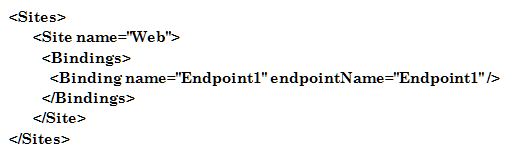
A simple section defining a single website looks like this: 

  
You can easily customise this section to define multiple web sites, virtual applications or virtual directories, as shown in this example:


After working with early adopter customers with Full IIS for the last couple of months, I've found that it's now easier than ever to port existing web applications to Windows Azure. However I've also found a few areas where you'll need to do things a bit differently to you did with HWC due to the different hosting model.


New Hosting Model


There is a significant difference in how your code is hosted in Windows Azure depending on whether you use HWC or Full IIS. Under HWC, both the RoleEntryPoint methods (e.g. the OnStart method of your WebRole class which derives from RoleEntryPoint) and the web site itself run under the WaWebHost.exe process. However with full IIS, the RoleEntryPoint runs under WaIISHost.exe, while the web site runs under a normal IIS w3wp.exe process. This can be somewhat unexpected, as all of your code belongs to the same Visual Studio project and compiles into the same DLL. The following diagram shows how a web project compiled into a binary called WebRole1.dll is hosted in Windows Azure under HWC and IIS.


This difference can have some unexpected implications, as described in the following sections.

Reading config files from RoleEntryPoint and your web site

Even though the preferred way of storing configuration in Windows Azure applications is in the ServiceConfiguration.cscfg file, there are still many cases when you may want to use a normal .NET config file - especially when configuring .NET system components or reusable frameworks. In particular whenever you use Windows Azure diagnostics you need to configure the DiagnosticMonitorTraceListener in a .NET config file.

When you create your web role project, Visual Studio creates a web.config file for your .NET configuration. While your web application can access this information, your RoleEntryPoint code cannot-because it's not running as a part of your web site. As mentioned earlier, it runs under a process called WaIISHost.exe, so it expects its configuration to be in a file called WaIISHost.exe.config.  Therefore, if you create a file with this name in the your web project and set the "Copy to Output Directory" property to "Copy Always" you'll find that the RoleEntryPoint can read this happily. This is one of the only cases I can think of where you'll have two .NET configuration files in the same project!

Accessing Static Members from RoleEntryPoint and your web site

Another implication of this change is that any AppDomain-scoped data such as static variables will no longer be shared between your RoleEntryPoint and your web application. This could impact your application in a number of ways, but there is one scenario which is likely to come up a lot if you're migrating existing Windows Azure applications to use Full IIS. If you've used the CloudStorageAccount class before you've probably used code like this to initialise an instance from a stored connection string:


var storageAccount = CloudStorageAccount.FromConfigurationSetting("ConnectionString");

Before this code will work, you need to tell the CloudStorageAccount where it should get its configuration from. Rather than just defaulting to a specific configuration file, the CloudStorageAccount requires you set a delegate that can get the configuration from anywhere you want. So to get the connection string from ServiceConfiguration.cscfg you could use this code:

Wednesday, December 01, 2010

BidNow Sample for Windows Azure

BidNow has been significantly updated to leverage many pieces of the Windows Azure Platform, including many of the new features and capabilities announced at PDC and that are a part of the Windows Azure SDK 1.3.  This list includes:
  • Windows Azure (updated)
    • Updated for the Windows Azure SDK 1.3
    • Separated the Web and Services tier into two web roles
    • Leverages Startup Tasks to register certificates in the web roles
    • Updated the worker role for asynchronous processing
  • SQL Azure (new)
    • Moved data out of Windows Azure storage and into SQL Azure (e.g. categories, auctions, buds, and users)
    • Updated the DAL to leverage Entity Framework 4.0 with appropriate data entities and sources
    • Included a number of scripts to refresh and update the underlying data
  • Windows Azure storage (update)
    • Blob storage only used for auction images and thumbnails
    • Queues allow for asynchronous processing of auction data
  • Windows Azure AppFabric Caching (new)
    • Leveraging the Caching service to cache reference and activity data stored in SQL Azure
    • Using local cache for extremely low latency
  • Windows Azure AppFabric Access Control (new)
    • BidNow.Web leverages WS-Federation and Windows Identity Foundation to interact with Access Control
    • Configured BidNow to leverage Live ID, Yahoo!, and Facebook by default
    • Claims from ACs are processed by the ClaimsAuthenticationManager such that they are enriched by additional profile data stored in SQL Azure
  • OData (new)
    • A set of OData services (i.e. WCF Data Services) provide an independent services layer to expose data to difference clients
    • The OData services are secured using Access Control
  • Windows Phone 7  (new)
    • A Windows Phone 7 client exists that consumes the OData services
    • The Windows Phone 7 client leverages Access Control to access the OData services 

    For  more details and to download Code sample of BidNow, Check this link

Windows Azure Platform Training Kit November 2010 Update

The November release of the training kit includes several new hands-on labs for the new Windows Azure features and the new/updated services we just released a few weeks ago PDC.  The updates in this training kit include:
  • [New lab] Advanced Web and Worker Role – shows how to use admin mode and startup tasks
  • New lab] Connecting Apps With Windows Azure Connect – shows how to use Project Sydney
  • [New lab] Virtual Machine Role – shows how to get started with VM Role by creating and deploying a VHD
  • [New lab] Windows Azure CDN – simple introduction to the CDN
  • [New lab] Introduction to the Windows Azure AppFabric Service Bus Futures – shows how to use the new Service Bus features in the AppFabric labs environment
  • [New lab] Building Windows Azure Apps with Caching Service – shows how to use the new Windows Azure AppFabric Caching service
  • [New lab] Introduction to the AppFabric Access Control Service V2 – shows how to build a simple web application that supports multiple identity providers
  • [Updated] Introduction to Windows Azure - updated to use the new Windows Azure platform Portal
  • [Updated] Introduction to SQL Azure - updated to use the new Windows Azure platform Portal
In addition, all of the HOLs have been updated to use the new Windows Azure Tools for Visual Studio version 1.3 (November release).   In the next update we will also include presentations and demos for delivering a full 4-day training workshop. 
You can download the November update of the Windows Azure Platform Training kit from here:  http://go.microsoft.com/fwlink/?LinkID=130354

Finally, we’re now publishing the HOLs directly to MSDN to make it easier for developers to review and use the content without having to download an entire training kit package.  

You can now browse to all of the HOLs online in MSDN here:  http://go.microsoft.com/fwlink/?LinkId=207018

Sunday, November 21, 2010

What's New in Windows Azure

Now that PDC is over and all the announcements are out, I want to share my viewpoint and insights into what was announced at PDC last week.

Most of the features that got announced are not available yet and will be in CTP form early next year. Here is a quick summary of what’s coming to Windows Azure in the near future. There are broadly classified into platform enhancements, enterprise features and developer productivity.

Platform Enhancements

  • VM Role – Web Role and Worker Role are boilerplate VMs to do specific kind of tasks. VM Role is a very generic VM that can be customized to run anything including legacy applications. VM Role will support Windows Server 2008 R2 images initially with support for other versions of Windows Server in the pipe. It is not clear if VM Role will run non-Windows OS images.
  • Admin Mode – Through this mode, you can gain more control by running MSI or installing custom software during the startup phase of a VM. This will bring more control to Web Role and the Worker Role without compromising the flexibility of automated management capabilities.
  • Full IIS Support – Till now, the Web Role ran a Hosted Web Core to host web applications. It was not a symmetrical web stack that typically runs on a Web Server. By supporting full IIS capabilities, developers can host multiple websites and tweak the web application platform like the way they do it on a Web Server.
  • Extra Small Instances – This is a new size of VM that costs only $0.05 / hour. This is great for playing with the platform or to spin a bunch of VMs for parallel processing. Applications can be deployed in Extra Small Instances during debugging /testing and can be sized appropriately for the production.

Enterprise Features

  • Cross Premise Connectivity – Enterprises can easily and securely extend their IP subnet to Azure VMs. This delivers on the promise of Windows Azure as an extended data center. When combined this with the VM Role features, this is a killer offering for the enterprises. Major concerns like security, latency and seamless integration with on-premise integration will be addressed through this feature.
  • Join VMs to Domain – VMs running within Windows Azure can join an existing Active Directory domain in an enterprise. With this, authentication and authorization becomes easy and powerful. Even internal line of business applications that depend on NTLM authentication can be moved to Windows Azure.
  • System Center Monitoring Management Pack – Through this, enterprises can manage and monitor the health of Azure VMs through the familiar System Center Operations Manager console. This is a great feature for instrumenting and managing the health of apps running within Windows Azure.

Developer Productivity

  • Enhanced Developer Portal – Built using Silverlight, the new Windows Azure developer portal offers a refreshing interface to manage the cloud infrastructure. It is faster, powerful and flexible to manage Windows Azure (Compute & Storage), SQL Azure and AppFabric features.
  • Remote Desktop – This is a killer feature! With this the administrator can log on to a running Web Role or a Worker Role to interactively configure and manage the instance. This will reduce the friction in managing and deploying apps on Azure.
  • Enhanced Developer Tools – There are a lot of enhancements to the Dev Fabric, Visual Studio tools and even Eclipse. Dev Fabric will support VM Role and updating content in a Web Role without redeploying the whole application. PHP and Java SDK for Windows Azure is also refreshed.

Through these announcements Microsoft made a strong statement that they are serious about Cloud. Here are some underlying messages that come out:

  • Blur the line between IaaS and PaaS – Microsoft never over emphasized on Windows Azure being just a PaaS platform. The plans of baking custom VMs into Windows Azure were there from day one. Today it is hard to qualify Windows Azure as just PaaS or IaaS. It is actually both!
  • Windows Azure is the true Cloud OS – Taking off from the initial vision that Ray Ozzie articulated in PDC 2008, Windows Azure has emerged as the true Cloud OS that powers the whole datacenter. So, Windows Azure to datacenter is what Windows is to the Server. Windows Internal’s guru, Mark Russinovich’s Inside Windows Azure talk emphasized this fact in many words.
  • Go head-on with Amazon – This is very clear! Windows Azure Platform has many pieces that are directly comparable and compete with Amazon Web Services. With VM Role, Extra Small VM Size, Cross-Premise Connectivity and a host of other features Windows Azure brings parity with Amazon Web Services.
  • Establish Azure as the first and only generic PaaS – Microsoft is serious about on-boarding the PHP and the Java community on Windows Azure. The investments in Eclipse plug-in, PHP SDK and the Java SDK will payback Microsoft in the longer run. Windows Azure is truly becoming a meta-platform that can support popular runtimes and platforms including .NET, Java and PHP.
  • Appeal to enterprises – Finally, there is a convincing and compelling story that Microsoft can tell the enterprises on why they should embrace Windows Azure. AppFabric, VM Role, Remote Desktop, Cross-Premise connectivity and other features reduce the barriers for enterprise adoption.

Reference:
http://www.janakiramm.net/blog/windows-azure-whats-new

Comparing Microsoft Windows Azure and Amazon Web Services – Part 1/7

The two entities that dominate the enterprise Cloud Computing landscape are undoubtedly Microsoft Windows Azure and Amazon Web Services. Though Google App Engine is maturing rapidly, I am not planning to cover it in this series. I may compare Windows Azure and Google App Engine in a separate article.

With the latest announcements from PDC, Microsoft is inching closer to Amazon Web Services to match the offerings. Windows Azure is also blurring the line between PaaS and IaaS by offering VM Role that enables businesses to bring their legacy applications to the Cloud. Microsoft is leveraging the leadership in the platform and tools by seamlessly integrating the Cloud with .NET and Visual Studio.

Amazon is a very credible player in the Cloud Computing space and enjoys the leadership position in the IaaS offerings. Their fast paced innovations ensure that they have a lead and help them differentiate from the competition. They have a very healthy ecosystem of partners and developers who build rich and complimentary tools on AWS.

This series of articles attempts at comparing the Windows Azure Platform and Amazon Web Services. The objectives of this series are the following –
  • Provide objective comparison between the two
  • Enable enterprises and ISVs to take an informed decision
  • Avoid marketing speak and buzz words
  • Be neutral and unbiased in the approach
The following table provides a quick comparison of both the platforms.

Microsoft Windows Azure Platform and Amazon Web Services
Looking at the above, it is evident that these two stacks will go head-on to secure the mind share and market share. While Microsoft is moving some of the middleware components from BizTalk Server to Azure, Amazon is leveraging it’s payment mechanism and components for AWS. Windows Azure will be the most comprehensive PaaS offering once all the above components are delivered.

In the next few articles, I will be providing a detailed study of Compute and Storage offerings from these two players. Expect to see the following technologies to be covered:
  • Compute
  • Storage

    • Flexible Entities (Azure Tables / Amazon SimpleDB)
    • Blobs (Azure Blobs / Amazon S3)
    • Queues and Messages (Azure Queues / Amazon SQS)
    • Persistent Block Storage (Azure Drive / Amazon EBS)
    • Relational Database (SQL Azure / Amazon RDS)
The comparison study will cover the following factors –
  • Terminology
  • Size / Unit

  • Limitations
  • Pricing
  • Security
  • Language and Tools Support
Watch this space for the next part of the series where I will be covering Amazon Elastic Compute Cloud with Windows Azure Compute.

Wednesday, November 17, 2010

Windows Azure Diagnostics–Where Are My Logs?

Recently I noticed that lot of developers who are just starting to use Windows Azure hit issues with diagnostics and logging. It seems I didn’t go the same path other people go, because I was able to get diagnostics running from the first time. Therefore I decided to investigate what could possibly be the problem.

I created quite simple Web application with only one Web Role and one instance of it. The only purpose of the application was to write trace message every time a button is clicked on a web page.

In the onStart() method of the Web role I commented out the following line:DiagnosticMonitor.Start("DiagnosticsConnectionString");

and added my custom log configuration:
DiagnosticMonitorConfiguration dmc =
DiagnosticMonitor.GetDefaultInitialConfiguration();
dmc.Logs.ScheduledTransferPeriod = TimeSpan.FromMinutes(1);
dmc.Logs.ScheduledTransferLogLevelFilter = LogLevel.Verbose;

DiagnosticMonitor.Start("DiagnosticsConnectionString", dmc);

Here is also the event handler for the button:

protected void BtnSmile_Click(object sender, EventArgs e)
{
    if (this.lblSmile == null || this.lblSmile.Text == "")
    {
    this.lblSmile.Text = ":)";
    System.Diagnostics.Trace.WriteLine("Smiling...");
    }
    else
    {
    this.lblSmile.Text = "";
    System.Diagnostics.Trace.WriteLine("Not smiling...");
    }
}This code worked perfectly, and I was able to get my trace messages after about a minute running the app in DevFabric.

After confirming that the diagnostics infrastructure works as expected my next goal was to see under what conditions I will see no logs generated by Windows Azure Diagnostics infrastructure. I reverted all the changes in the onStart() method and ran the application again. Not very surprisingly I saw no logs after minute wait time. Somewhere in my mind popped the value 5 mins, and I decided to wait. But even after 5 or 10, or 15 mins I saw nothing in the WADLogsTable. Apparently the problem comes from the default configuration of the DiagnosticMonitor, done through the following line :

DiagnosticMonitor.Start("DiagnosticsConnectionString");

Looking at the code I discovered that the default configuration uses

ScheduledTransferPeriodInMinutes = 0

Unfortunately this doesn’t work well with Windows Azure Diagnostics infrastructure, and is the main cause for the missing logs.

I simulated that quite easily with changing the following line in my custom configuration:

dmc.Logs.ScheduledTransferPeriod = TimeSpan.FromMinutes(1);

to:

dmc.Logs.ScheduledTransferPeriod = TimeSpan.FromMinutes(0);

Windows Azure Diagnostics does not accept values below 1 min for transfer period. Thus you should always get diagnostics configured according to your needs, and if you don’t want to use scheduled transfers you should make sure you push out the logs in your code.

I will continue my investigation of logging in one of my subsequent posts but for now I think this will be quite helpful for people.

Update: I circled back with our developers and they reminded me that not transfering the logs by default was intentional. The reason being that you will incurr charges for the logs stored in your storage account.


Reference : http://blog.toddysm.com/2010/04/windows-azure-diagnosticswhere-are-my-logs.html

Allowing More Than One Developer to Manage Services in Windows Azure

Hi Friends,

Check this Link: http://blog.toddysm.com/2010/07/allowing-more-than-one-developer-to-manage-services-in-windows-azure.html

Upgrade Domains and Fault Domains in Windows Azure

Hi Friends,

Check the link below

http://blog.toddysm.com/2010/04/upgrade-domains-and-fault-domains-in-windows-azure.html